Support Troubleshooting
- - SMS by KeyTech Installation Guide?
- from the PC you going to use for SMS
- open the browser
- type keytechsecurity.com
- Select login
- enter your email account( admin user email account)
- enter your password
- the page will direct you to your account page
- Select Setting
- Select download
- once the download complete
- right click and run as administrator
- follow the instruction
- once download complete
- a SMS page will appear requesting you to enter you company name and enter your password
- SMS now ready for use.
- - FR (Facial Recognition) Recorded videos are not Playing?
- download and install this link - https://files2.codecguide.com/K-Lite_Codec_Pack_1810_Full.exe
- once done select the video you want to play.
- Right click and open with MPC-HC
- - FR ( Facial Recognition) How do I register some face ?There are three ways to register a person face- 1st - using your FR PC webcam 2nd - using any of the connected cameras 3rd - registering via SMS by KeyTech Mobile app Android click on this link https://play.google.com/store/apps/details?id=com.smsbykeytech.sms&pcampaignid=web_share IOS click on this link https://apps.apple.com/gb/app/sms-by-keytech/id1390961168
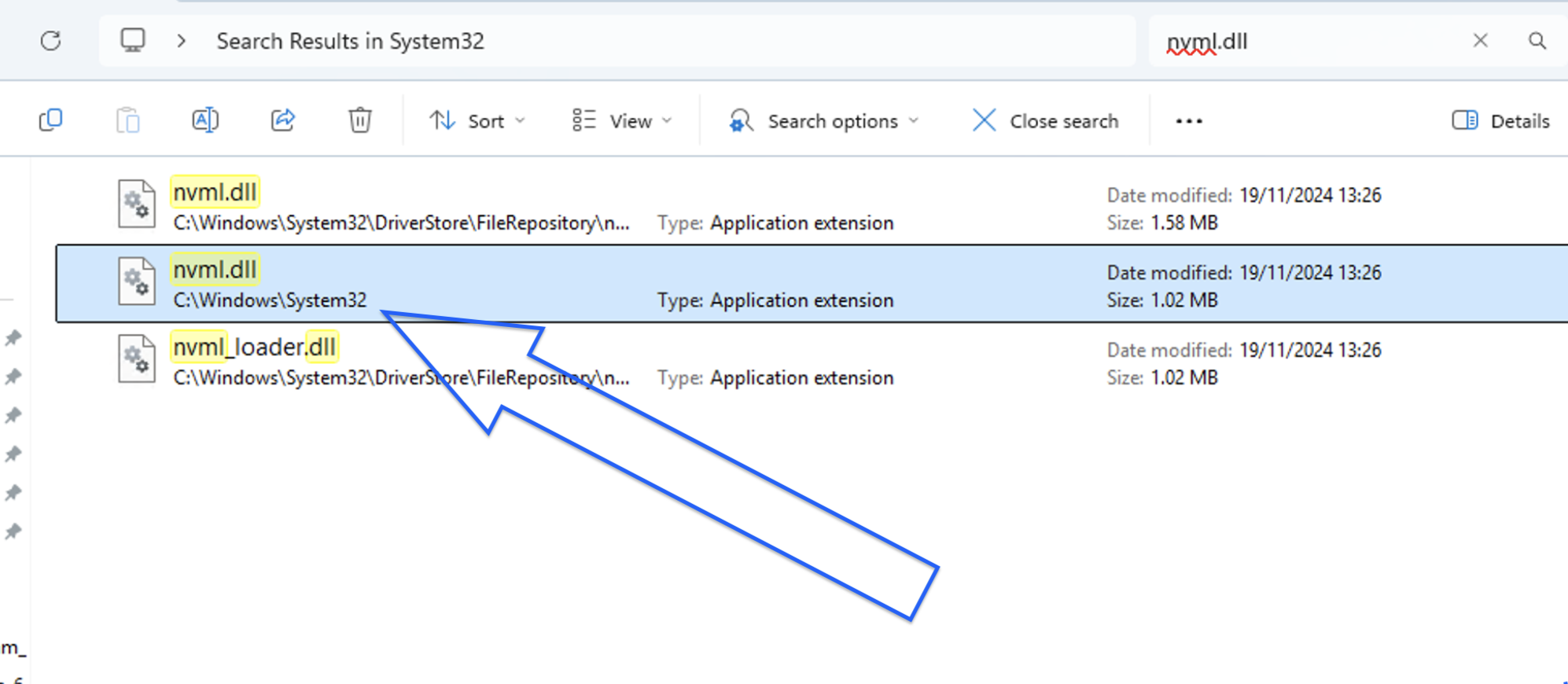
- - FR (Facial Recognition) Error failed to initialized NVMLError failed to initialized NVML https://keytechsecurity.com/wp-content/uploads/2026/01/failed-to-initialized-NVML-scaled.png You need to copy nvml.dll file from system32 and replace it with the one in SMS_FR_Bin folder here is how :
- Close the entire application
- right click task bar
- select task manager
- look for SMS_ agent and end task
- Click on C drive
- Click Windows folder
- Click System32 folder
- search for nvml.dll see image https://keytechsecurity.com/wp-content/uploads/2026/01/failed-to-initialized-NVML-scaled.png
- Copy nvml.dll file
- open program file 86 folder
- open SMS folder
- Open SMS_FR_Bin
- paste nvml.dll inside the SMS_FR_Bin sometime the file already exist select replace
- - FR (Facial Recognition) Error WebCam streaming stoped ?usually this happens due to a communication loss between the software and the hardware > however here is few steps you should do :-
- stope the FR
- close the FR page
- go the setting
- select FR setting
- Look for the webcam
- on the left side where the (tick) sign click to deactivate and activate
- Launch the FR
- start the FR this should bring the webcam back
- - FR (Facial Recognition) Person Registered but not recognized!
- Ensure there is sufficient lighting inn the area.
- The person not covering large area of their face while walking in front of the camera.
- look in the direction of the camera if possible.
- - FR (Facial Recognition) Where do i find the videos of recognized people!Tt depends on which drive you install SMS C/D/E etc however here is how to find the video log
- Select the Drive you installed SMS C,D,E,
- Click on Program Files x86
- Find SMS folder and click open it
- Find folder SMS_FR_Bin and open it
- Find Logs folder and open it
- find video logs folder and open it
- find the month folder ( example if month of may it going to be. '5' )
- find the day and open it
- search for the video you want
- - FR (Facial Recognition) How to add/connect camera to my FR ?
- Launch SMS - Select Setting- Select FR Setting- Add new Camera
- Using and IP Camera
- Hikvision Example: - Steaming IP 192.xx.xx.xx:554/Streaming/channels/101/
- Dahua Example: - Streaming IP 192.xx.xx.xx:554/cam/realmonitor?channel=1&subtype=1
- Using analogy Camera connect Via DVR (Digital Video Recorder)Enter your DVR IP URL 192.xx.xxx.xx:554/Streaming/channels/101/
- Channel No 101 for Camera 1 if you require ad more camera the Next cameras will have te same URL but all you need to change channel to 201 , 301,401,501,601,701,801,901
- Tiandy: Streaming IP 192.xx.xx.xx:554
/ch01/realmonitor?subtype=0
- Connecting Via External IP address
- Using PLC for Access Control
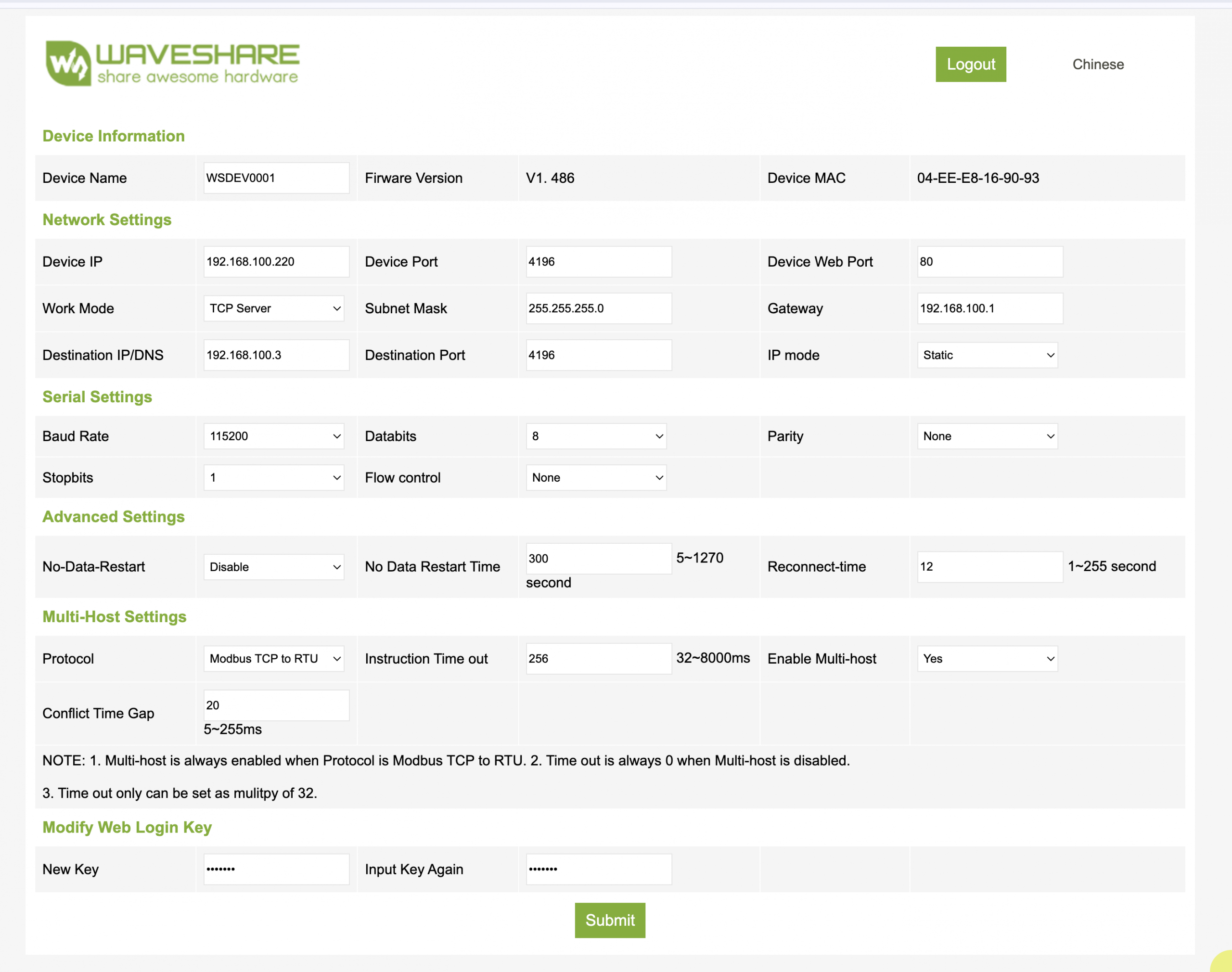
- Wave-Share PLC
- 4196 - Device port can be changed to your requirment
- 1 - is the port number you want to use to for access
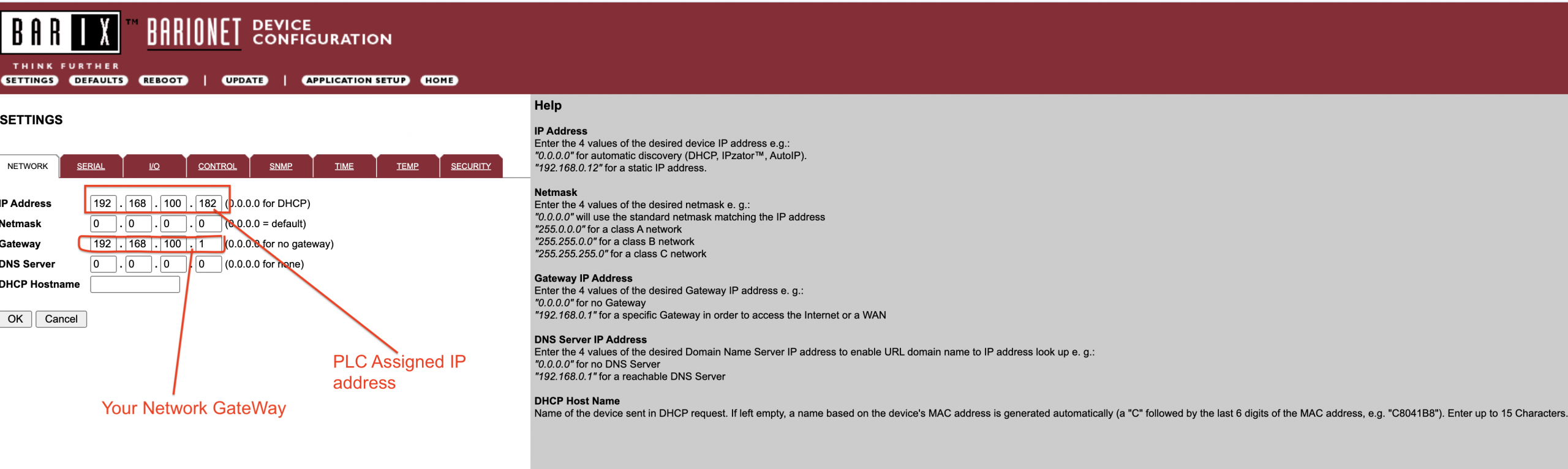
- Barix Barionet PLC
- URL Example: - http://192.168.100.182/rc.cgi?o=3,999
- 3- is the port number you want to use to for access
- - FR (Facial Recognition) What PC/Server Specification Requirements!You require a computer with minimum ,
- 64-bit Windows 7 or higher
- Intel® Core™ i7 – 6900 or higher
- 6th Generation or higher
- 64GB RAM or higher
- 6GB Nvidia Graphic or Higher (If you Planing to Use ANPR or Face recognition)
- HDD 500GB or higher
- - FR (Facial Recognition) Error Face registration Button not responding ?Check if the FR Multi streeming is running if not! start the FR and start multi Stream. Refer to demostration video attached https://keytechsecurity.com/wp-content/uploads/2025/07/Face-Registration-Not-Responding.mov
- - FR (Facial Recognition ) Error Engine Agent Not Running or responding -?
- Close SMS
- Closer FR window
- Right-click on the taskbar (empty space)
- Select Task Manager
- in the Processing Column look for-
- - SMS_Agent - Right Click - End Task
- - SMS _Client Service - Right Click - End Task
- right Click on SMS Icon on you Desktop
- Run as administrator
- enter you user name and password
- launch the FR
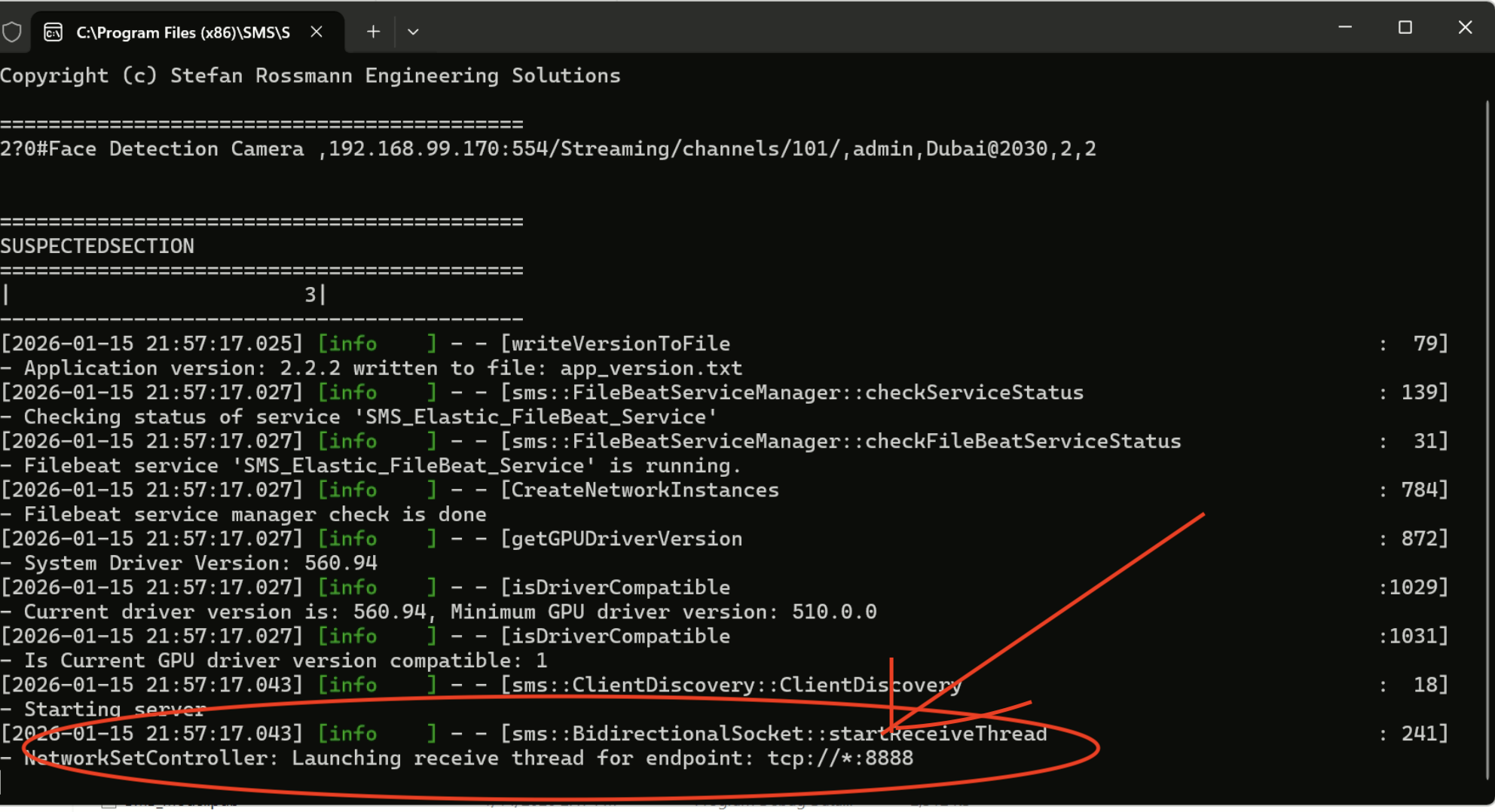
- - FR (Facial Recognition) Error Launching receive thread for end point tcp://*:8888- Launching receive thread for end point tcp://*:8888
- Close the process
- Turn off the Antivirus
- Restart the process again
- - FR (Facial Recognition) Error message ( Setting Properties Failed. Client with IP:tcp://Locahost:22222 did not respond.)for Error message ( Setting Properties Failed. Client with IP:tcp://Locahost:22222 did not respond.) Do the following:-
- Right Click at the Menu bar
- Select Task Manager
- Look for SMS_Agent
- right click
- end task ( see image attached)
- Close FR window
- Close all SMS_FR from the Task manger
- restart the FR again
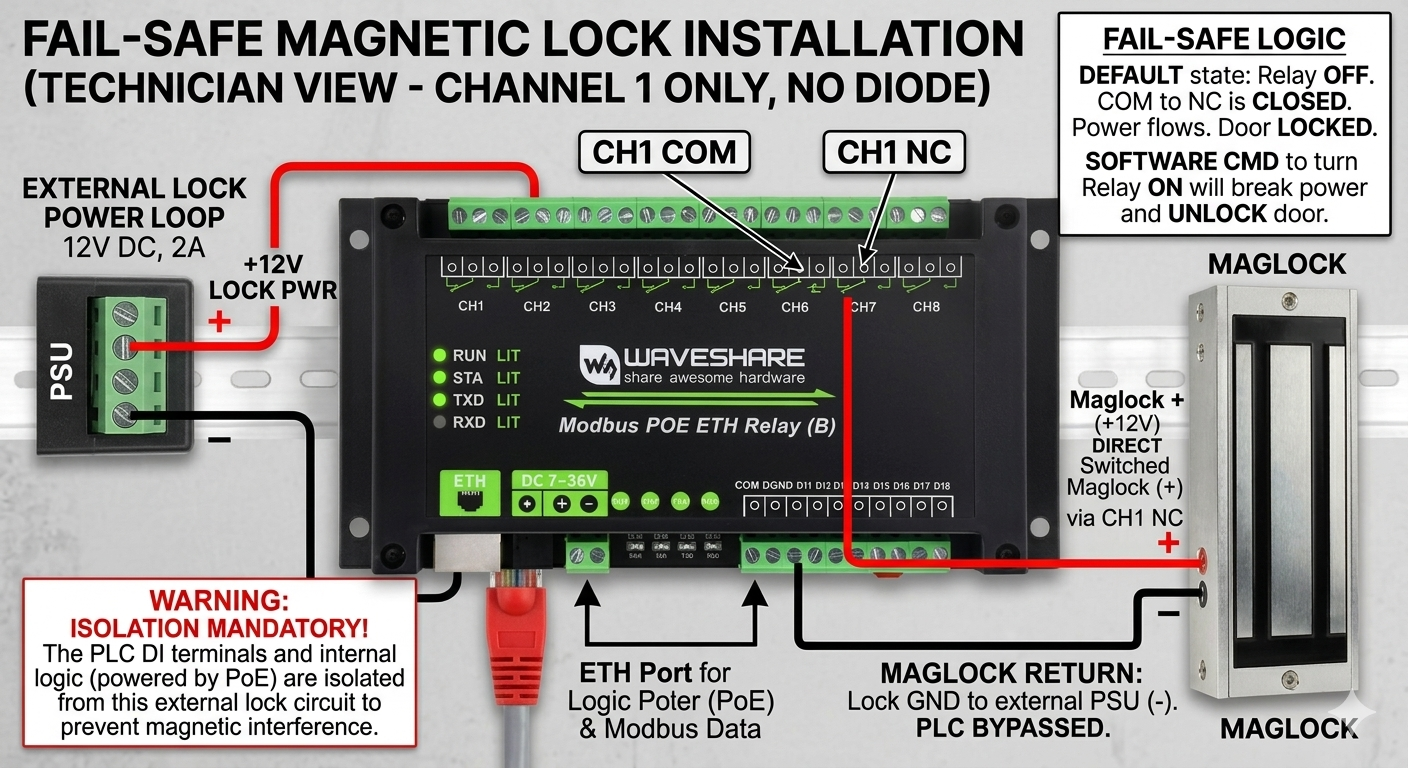
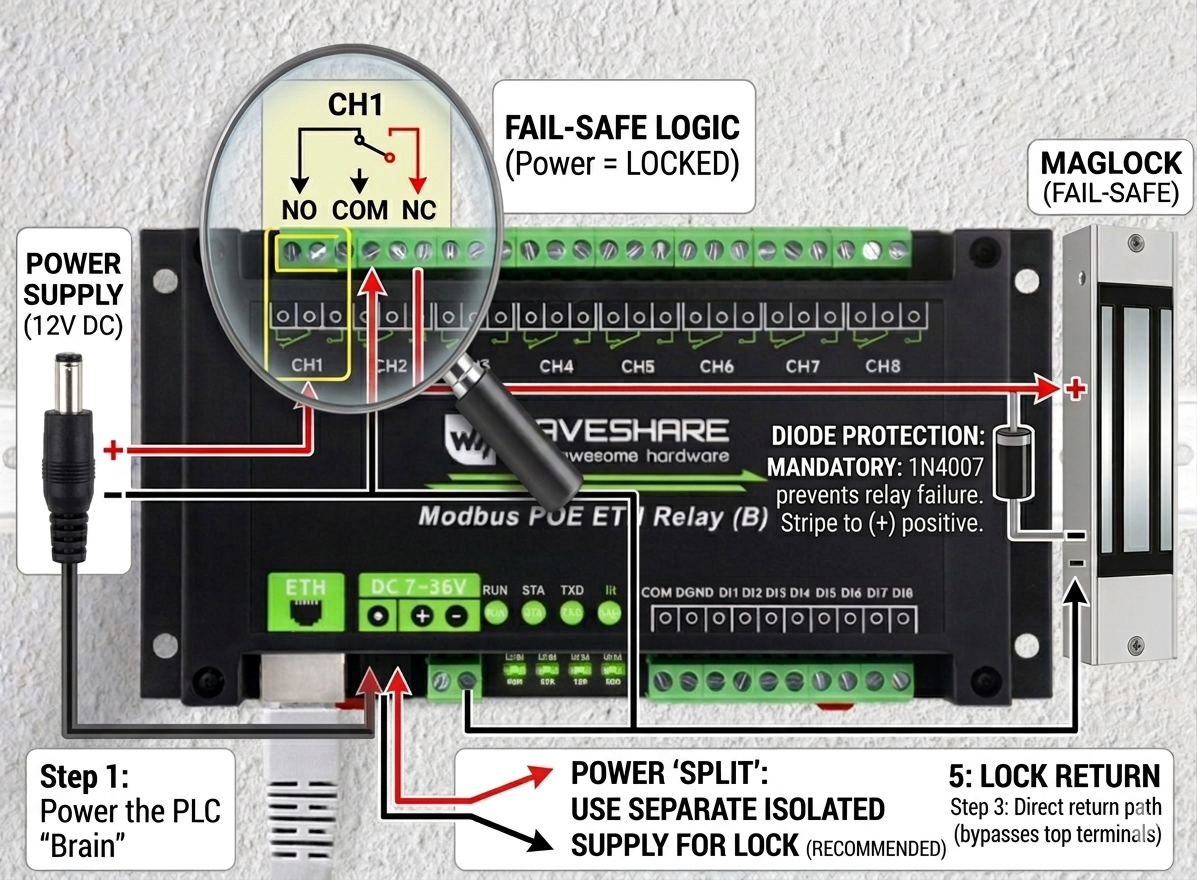
- -PLC Wave-Share ( Programmable logic controller) - Wiring Diagram?Wave-Share PLC Wiring Diagrams.
- Instruction Document Powering Via PoE https://keytechsecurity.com/wp-content/uploads/2026/04/Wave-Share-instruction-diagram-Using-PoE.pdf
- Wiring Diagram Image Powering Via PoE https://keytechsecurity.com/wp-content/uploads/2026/04/Poe-Connection.png
- Instruction Document using Power supply https://keytechsecurity.com/wp-content/uploads/2026/04/Non-Poe-connction.pdf
- Wiring Diagram using Power Supply. https://keytechsecurity.com/wp-content/uploads/2026/04/Non-Poe-connction.png
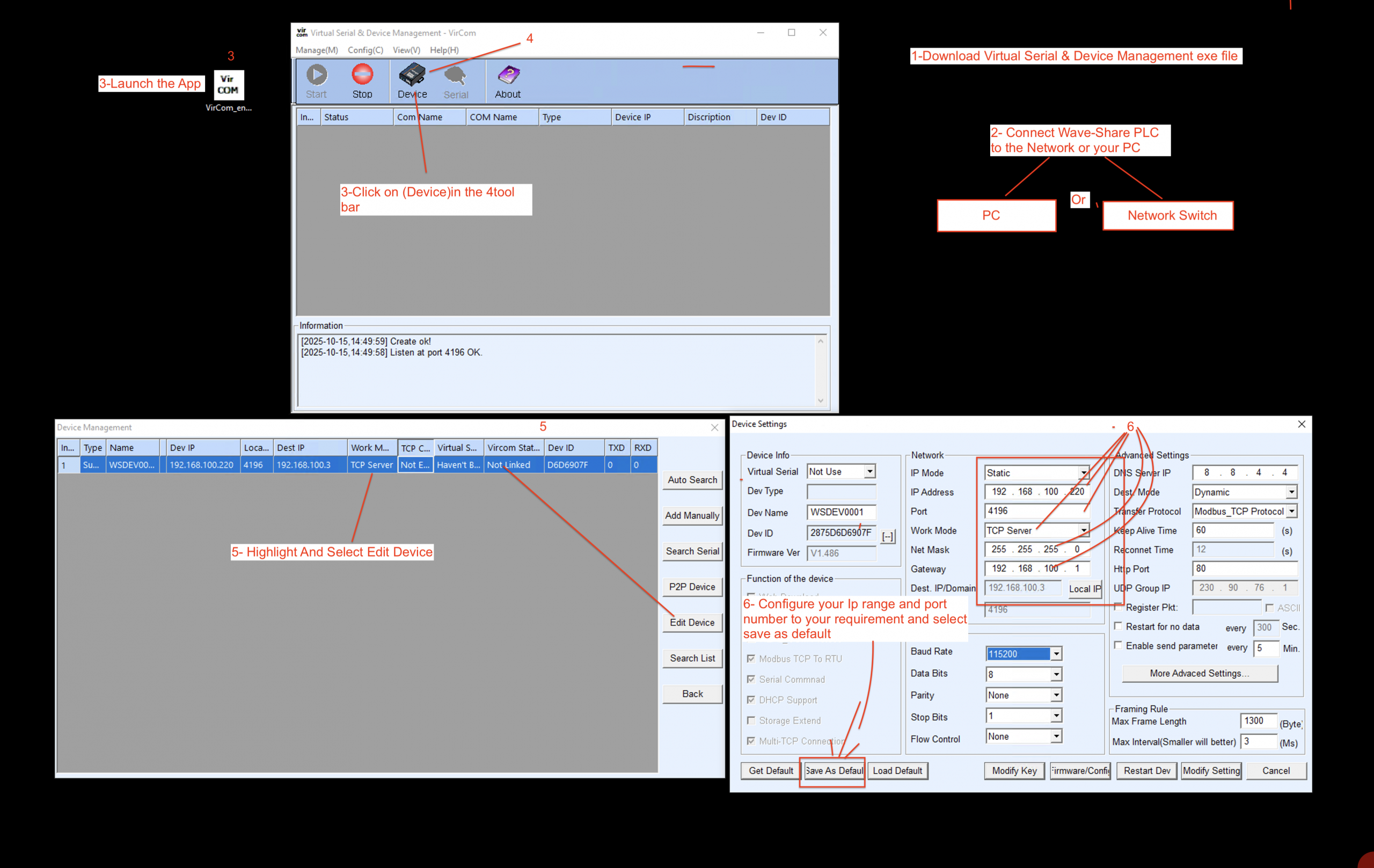
- -PLC Wave-Share ( Programmable logic controller) - How to configure?Wave-Share PLC.
- - Download Virtual Serial & Device Management exe file . This One VirCom
- - Connect PLC to your network switch
- - Launch the VirCom App
- – Click on (Device)in the tool bar
- – Device Management window will open
- -Highlight and Select Edit Device
- - Configure your network range and port number to your requirement
- -Save as default and close
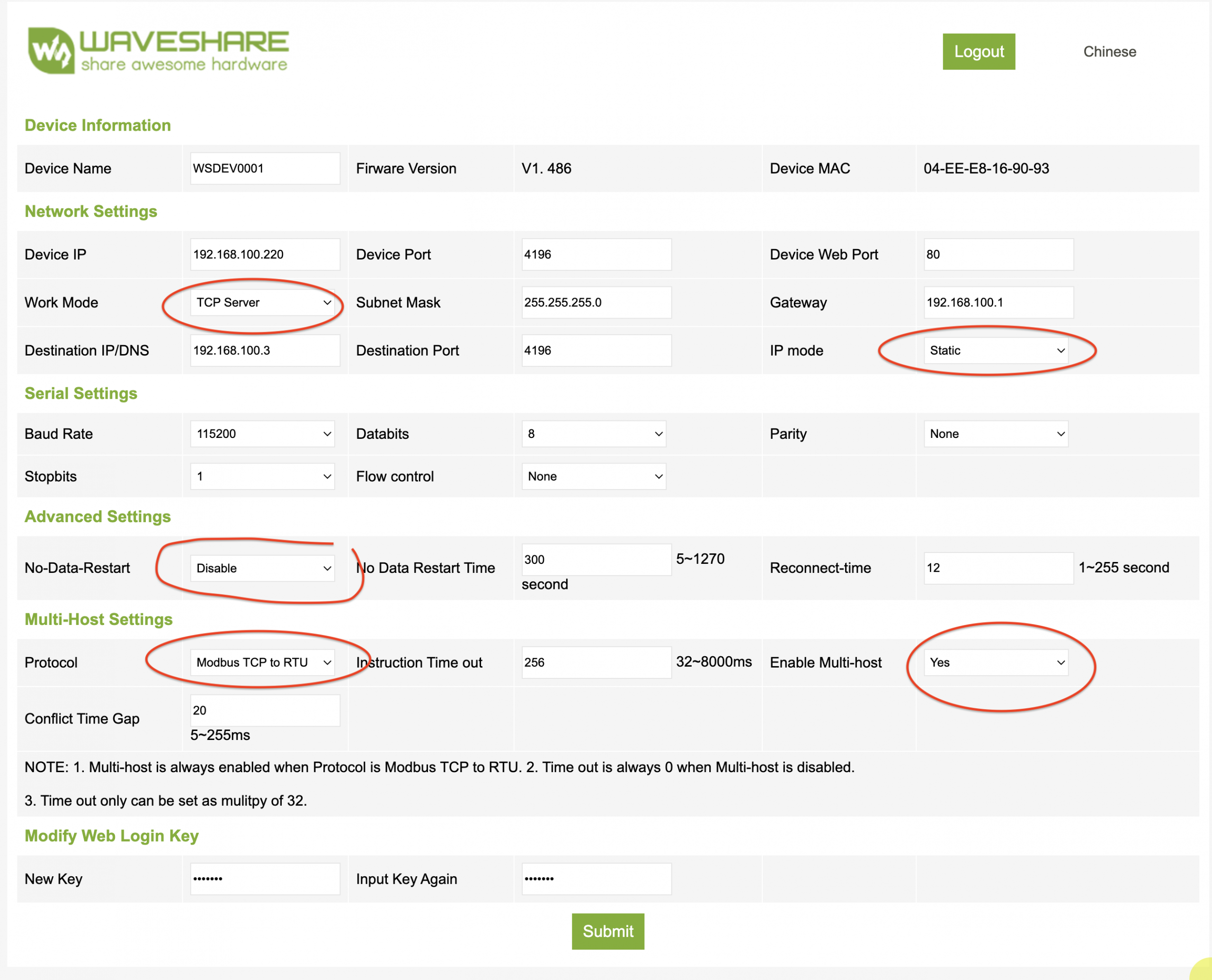
- Open browser
- Type in your PLC IP
- It should take you to a page like this also the insure the circled in red are set on your device the same (see Image)
- -ANPR (Automatic number plate recognition)- how to connect a camera?Launch AEEP ( Automated Entry and Exit Parking)
- Select Setting
- Enter you user name ( your registered email)
- Enter your password
- new popup page with all the setting appear
- Enter the camera URL RTSP ( Real Time Streaming Protocol) as Follows in this example:-192.168.168.168:Camera port number/streaming/channels/101/
- Enter the camera user name
- enter the camera Password
- -ANPR(Automatic number plate recognition)-What camera specification do i require?For car-Park Any 2MP(mega Pixel) 6mm lens with basic IR will work, however - for optimal results use a camera with the below specification :
- Resolution: 2-4MP (Mega pixel) ,typical distances (3-30 meter ). Higher = better for multi-lane
- lens: Motorized varifocal (8-32mm or 10-50mm) Allows precise zoom/focus on plates
- Shutter Speed: 1/1000 - 1/8000 sec)
- IR Illumination: Built-in 850-940nm IR, 50-165ft range, adjustable/pulsed
- HDR/WDR: 120dB+
- Frame Rate: 30-60FPS
- Sensor: Starlight or low-light (1/1.8" CMOS)
- Resolution : 4MP(Mega pixel)
- Shutter Type: Global shutter + fast shutter (1/1000-1/20,000 sec)supports 100-200+ mph (160-320+ km/h)
- Lens: 10-50mm+ Motorized varifocal or higher (narrow FOV for single/multi-lane)
- IR Illumination: Pulsed/synchronized 850nm IR (100-200ft+); add external for longer; dual-light (IR + white) for color
- Frame Rate: 60-120 FPS
- HDR: 120dB+
- - ANPR (Automatic number plate recognition) AEEP- Ido you have an installation diagram.
- Yes installation diagram attached https://keytechsecurity.com/wp-content/uploads/2024/09/AEEP-Daigram.pdfRecommended hight of the Camera Should be between 120-140 centimeter from the ground
- - AEEP ANPR ( Automated Entry and Exit Parking) PC/Server Specification Requirements?You require a computer/Server with minimum ,
- 64-bit Windows 7 or higher
- Intel® Core™ i7 – 6900 or higher
- 6th Generation or higher
- 64GB RAM or higher
- 6 GB Nvidia Graphic
- HDD 500GB or higher
- PLC ( Programable Logic Controller ) this is depends on your the Barrier/Gate/bollards whether if they manufacture does provide SDK ( Software Development Kit)
- - Reports - Time & Attendance Report page blank ?close the report page close all the pages are open except the main SMS page and reopen the report page
- - How to Install SMS ?
- - How to Purchase SMS ?
- - GPU Compatibility List?List of GPUs Compatible with SMS by KeyTech Software :- Click On this Link
- - How to Restore from backUp ?From the same you sing SMS by Keytech App:-
- Go to https://keytechsecurity.com
- Select Login
- Enter User Name ( admin Email )
- Enter Password ( you admin Password)
- page will redirect you to your account
- Go to Setting dropdown list
- Select Download
- Scroll down Select SMS download
- start the download
- right click on SMS_setup file you just downloaded
- run as administrator ( you must run as administrator)
- Popup window will require your Product Key( this found in the same setting dropdown list under Licenses)
- Copy the license Number and paste it in the SMS Product Key required
- follow instructions
- - How to add users to SMS Desktop ?
- - GPU Video Writer is not initialized?GPU Video Writer is not initialized :-


- To download the latest GPU driver first go to this link: Download The Official NVIDIA Drivers | NVIDIA
- Download Instructions
- - How to use SMS Visitor Management ?
- - How to add your company to Time and Attendance Part 1?